User guide
How it works: from invoice to VAT return
This guide explains, task by task, where to find things in booxx: choosing your language, sending an invoice, reverse-charging VAT, sending in receipts, importing your bank statement, filing the VAT return and inviting your accountant.
In short
In the accounting software booxx you create invoices under Sales and email them as a PDF, with the e-invoice (UBL) attached. You send receipts and purchase invoices to your administration's own email address, or take a photo of them.
- Languages
- Dutch, English, Polish, Hungarian and Romanian. Every user picks their own language; an invoice gets your customer's language.
- VAT return
- Boxes 1a to 5b, EC sales list (ICP) and supplementary return, filed directly with the Dutch Belastingdienst via Digipoort.
- Trying it
- 90 days free, no payment method. After that €19 a month per administration.
Read more
You import your bank statement as an MT940 or CAMT file, and you file the VAT return from the software directly with the Dutch tax office (Belastingdienst), via Digipoort. You work in Dutch, English, Polish, Hungarian or Romanian, right down to your ledger accounts. You invite your accountant for free with the Accountant role. You log your hours for the hours criterion under Hours, and under Grants you see which schemes may fit your business.
How do you set the software to your own language?
You choose the language yourself: on the login screen, or afterwards with the flag at the top right (on a phone, in the menu under your name). You can choose Dutch, English, Polish, Hungarian or Romanian. Not just the screens switch, but also your ledger accounts and the explanation of every box on the VAT return. The bookkeeping underneath stays Dutch: the Dutch chart of accounts and the boxes of the Dutch tax office.
The language is set per user. If you work with an accountant, they work in the same administration in their own language. Your invoices are separate from that: they get your customer's language.
How do you create and send an invoice?
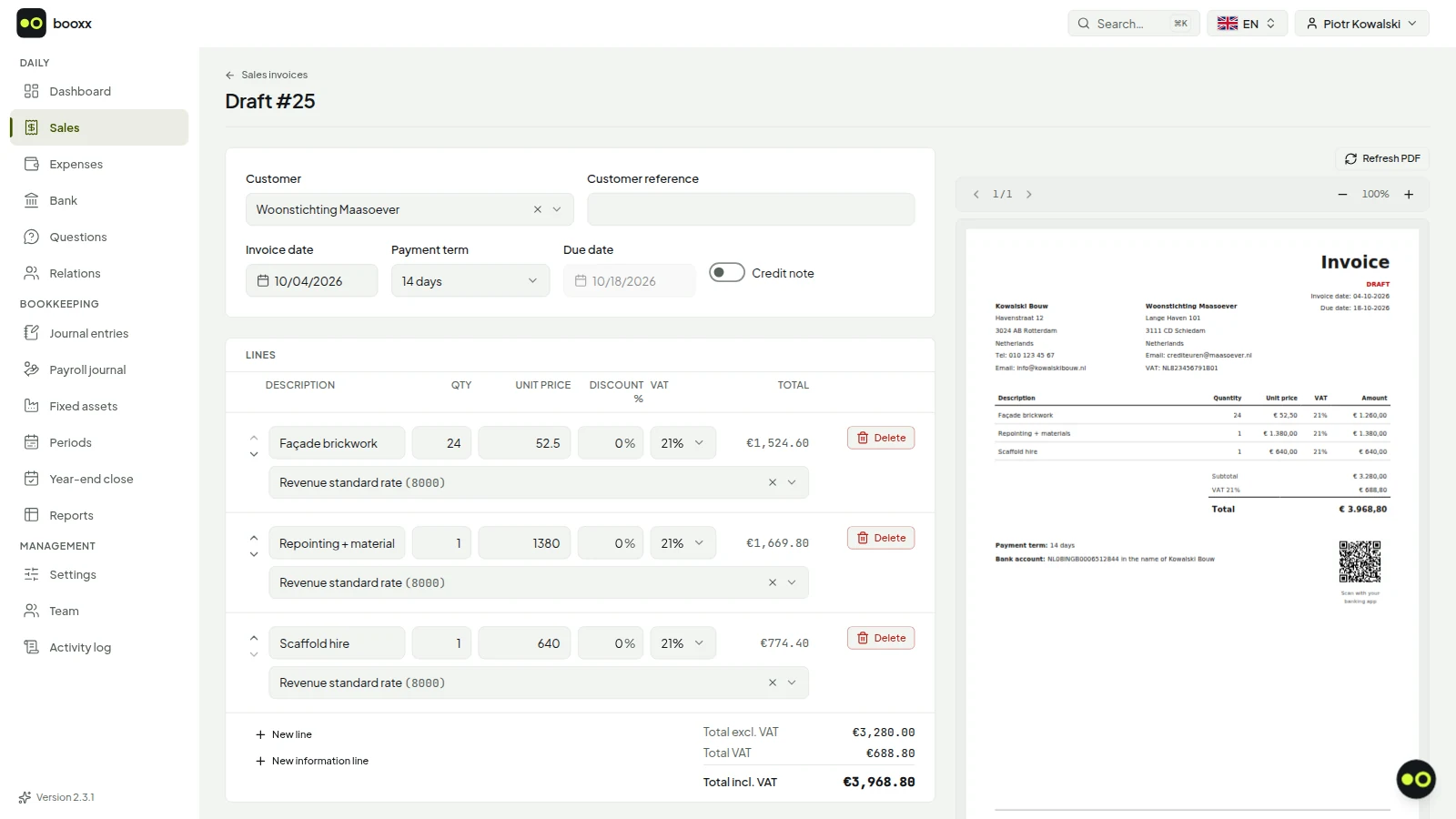
Under Sales you choose New. You pick your customer, add the lines with a VAT code on each one, and see on the right straight away what the invoice will look like. With Send it goes to your customer by email, as a PDF with the e-invoice (UBL) attached. The invoice is booked when you send it, and the PDF carries a payment QR code (EPC).
The invoice follows your customer's preferred language; if they have none, it will be Dutch. You can still change it when you send it: Dutch, English, Polish, Hungarian or Romanian. No invoice goes out without your name, address and IBAN. If a customer doesn't pay on time, you can switch on automatic reminders per administration, on a fixed schedule.
How do you invoice with reverse-charge VAT?
If you work as a subcontractor in construction, you choose the VAT code 'BTW verlegd' on the invoice line. The invoice then shows no VAT amount, but the note 'Btw verlegd' and your main contractor's VAT number. Without that number booxx won't send the invoice: it stays a draft and you get a message with a link to the customer. The revenue goes into box 1e of your VAT return.
If you hire a subcontractor yourself, booxx recognises 'btw verlegd' on their invoice and suggests the code 'BTW verlegd naar jou'. The VAT then goes into box 2 and is deducted again as input tax, so on balance you pay nothing, unless you use the small business scheme (KOR). When reverse charge applies is explained in the guide on reverse-charge VAT.
How do you add receipts and purchase invoices?
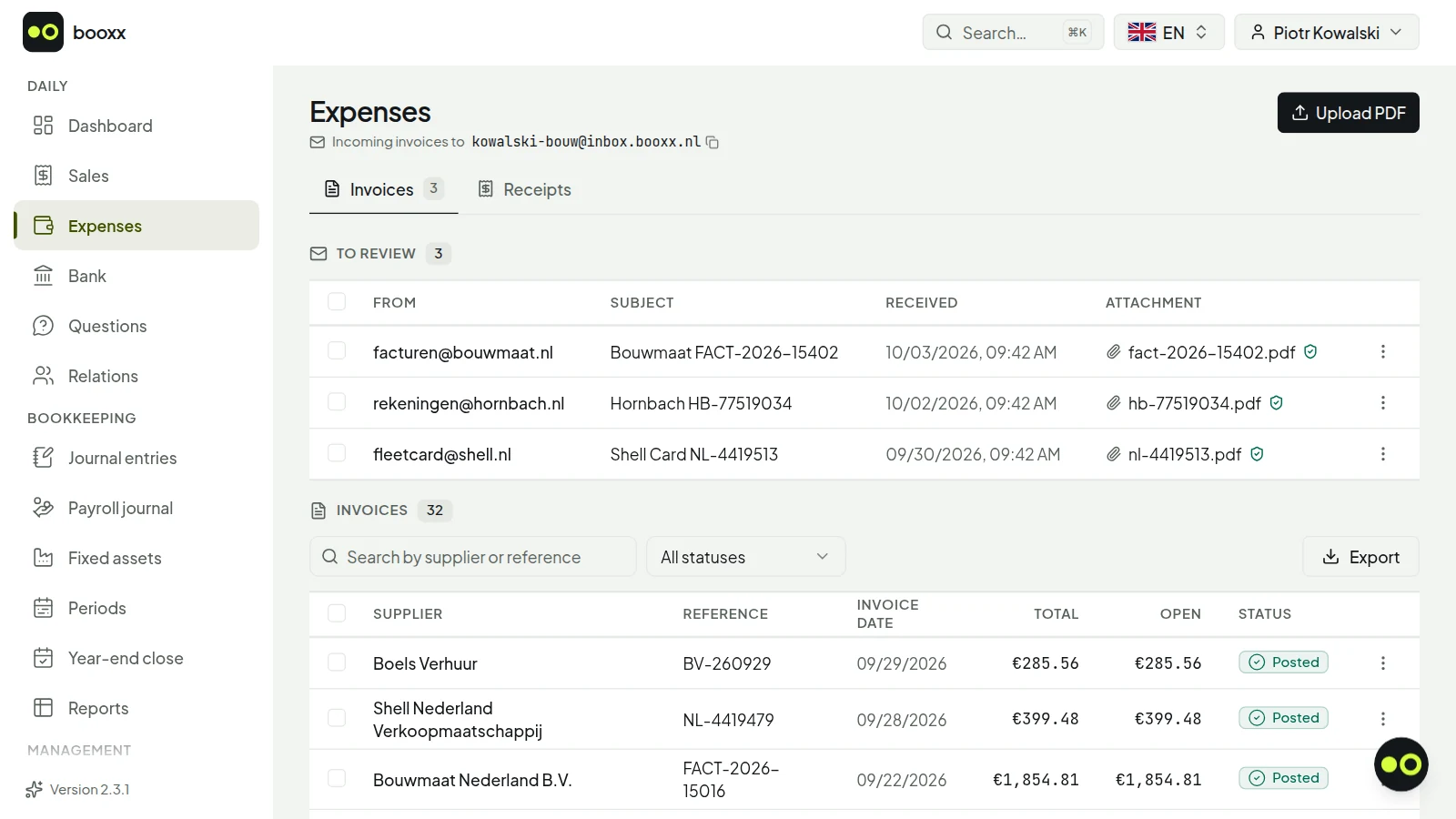
Your administration has its own email address for purchase invoices. You'll find it under Expenses, on the Invoices tab, after 'Incoming invoices to', with a button to copy it. Have your suppliers send their invoices to that address, or forward them yourself. You add a PDF you already have with Upload PDF.
You photograph a till receipt under Expenses, on the Receipts tab, with Add receipt. After that, booxx reads what's on it: supplier or shop, date, amount and VAT, and prepares the booking for you; you check it and book it. If you pick a different ledger account, booxx remembers it for that supplier next time. Paid for something out of your own pocket? Then choose Out of pocket as the payment method on the receipt.
How do you import your bank statements?
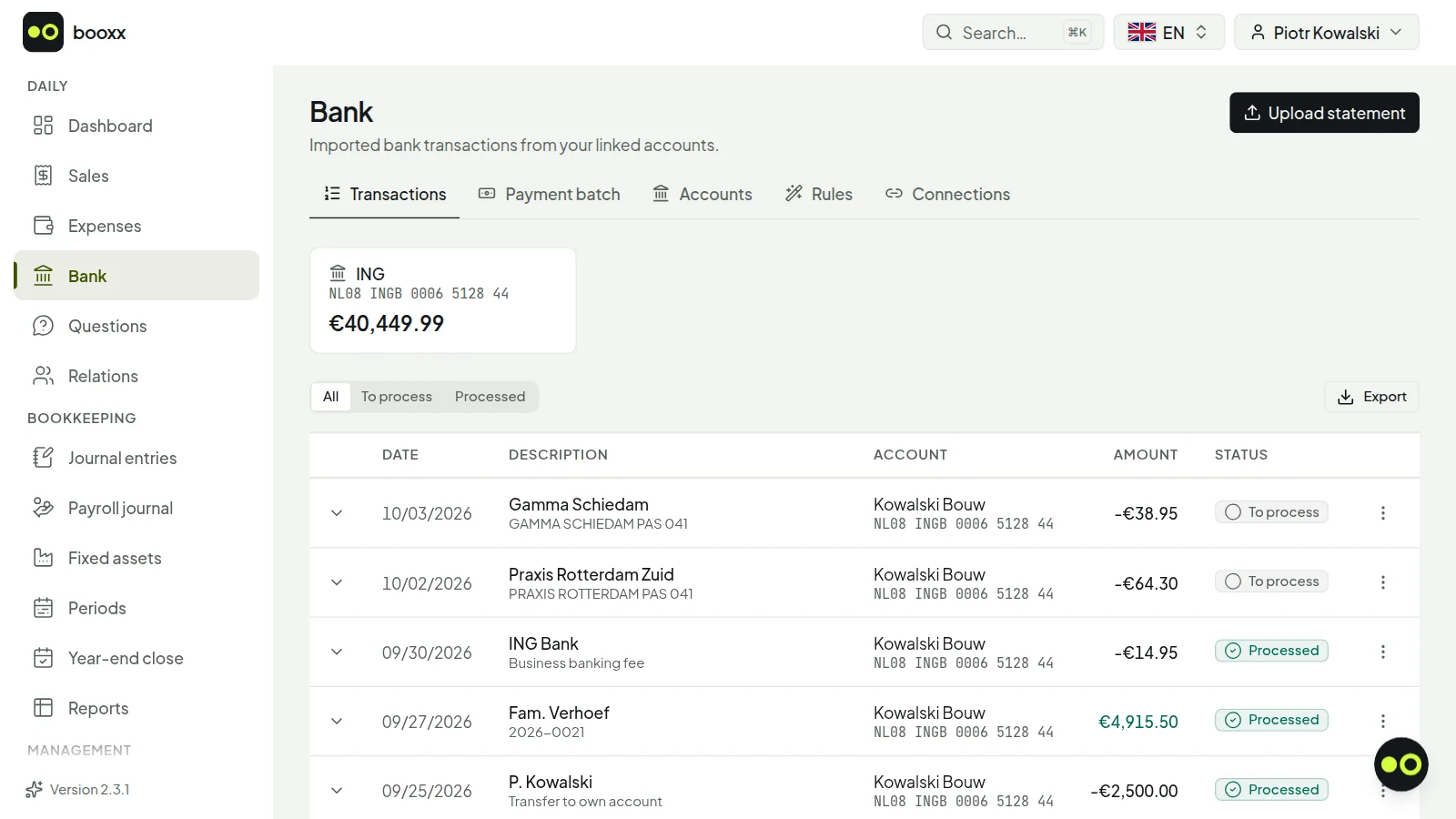
You download a statement from your bank as an MT940 or CAMT file and import it under Bank, with Upload statement. For each payment booxx suggests the invoice it belongs to; if you switch on Auto-reconcile receipts for a customer, that happens by itself. For what comes back every month, like rent or your phone contract, you create a bank rule, and you split a combined payment over several invoices.
The automatic bank connection (PSD2) is in development; until it arrives, you import the file yourself. If your bank only gives you a CSV file, you convert it to MT940 with the free converter on this site.
How do you do your VAT return?
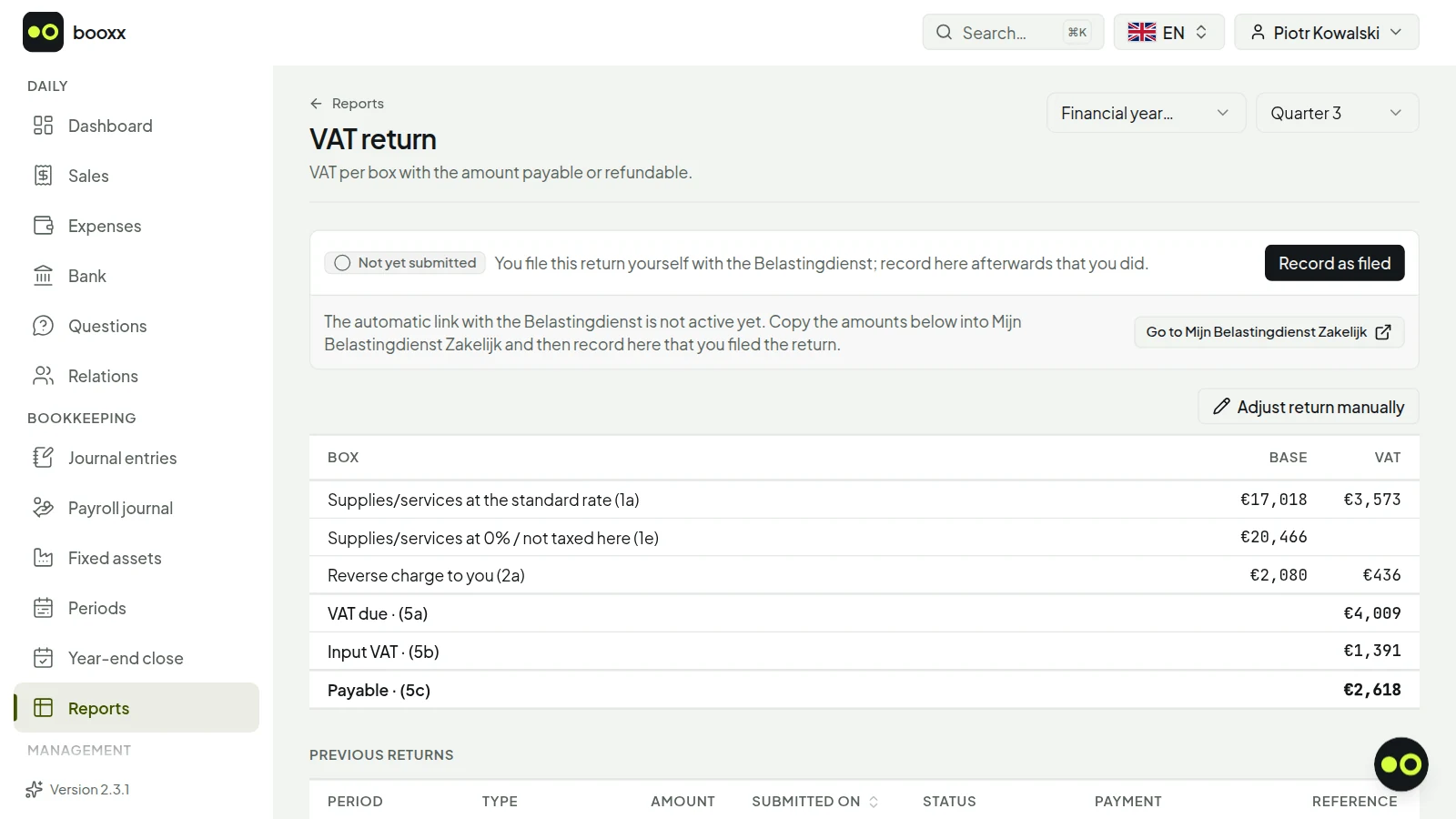
Under Reports, VAT return you'll find the worksheet with boxes 1a to 5b, filled from your bookings. Every amount clicks through to the bookings behind it, so you can see where it comes from. The VAT card on your dashboard shows which period you still need to file and the date it has to be in by.
When everything checks out, you file the return with Submit to Belastingdienst, directly with the Dutch tax office via Digipoort. You don't need eHerkenning for that, just your VAT tax number in your company details. Afterwards you see the amount, the Dutch tax office's account and the payment reference, with a copy button next to the account and the reference. An EC sales list (ICP) for goods and services supplied to businesses in other EU countries and a supplementary return for a correction over a closed period work the same way. The return and the payment have to be in by the last day of the month after your period.
From booking to filed return
- BookingInvoices, receipts and bank statements go into your books, each with a VAT code.
- Checking the worksheetBoxes 1a to 5b are ready; every amount clicks through to the bookings.
- FilingDirectly with the Dutch tax office, via Digipoort, from the software.
- PayingBy the last day of the month after your period at the latest.
How do you invite your accountant?
Under Team you invite your accountant or bookkeeping firm with the Accountant role. It costs nothing extra, and you can invite more than one. Your accountant works in the same administration, in their own language: they book, manage the ledger, prepare the VAT return and put periods up for review. You keep creating invoices and sending in receipts, and payments always stay with you.
If your accountant has a question about a payment, they ask it on your own screen and you answer there. If their firm works with booxx itself, the firm can view your books, with the staff it assigns, while you keep your own subscription.
Try free for 90 days90 days free, then €19 a month · no payment method needed · cancel any month
How do you see what you make per job?
Under Settings, Projects you create a project for an assignment or job. You add that project to your purchase and sales invoices; you can still change it per invoice line. Under Reports, Projects you see the revenue, the costs and the result per project, also across the turn of the year.
How do you keep track of your hours?
Under Hours you fill in a weekly timesheet: your projects below each other, the days side by side, then Save week. If you work to a fixed pattern, Fill week or month fills a whole week or month at once, skipping public holidays and days that already have hours. Same as last week copies last week.
If you have a sole proprietorship or partnership (vof), you see at the top how many hours you have logged this calendar year, against the 1,225 hours of the hours criterion. Hours without a project count too, such as admin and sales. With Export you download the overview as an Excel or CSV file, for an audit or for the WBSO.
From hours worked to timesheet
- Log hoursPer day and per project in the weekly timesheet, or a whole week or month at once.
- Check the counterWith a sole proprietorship or vof: your hours this calendar year against the 1,225.
- ExportThe overview as an Excel or CSV file, for an audit or the WBSO.
How do you see which grants and tax schemes fit you?
Under Grants the software looks at your books to see which Dutch schemes may fit: tax schemes such as the KIA, EIA, MIA and Vamil and the WBSO, and grants with an application desk such as SLIM and DHI. An opportunity appears from a booked investment, a quote you add or staff on the payroll, and for the WBSO from R&D hours or your company profile. On the Opportunities tab you see for each scheme roughly what it is worth and the date by which you need to act.
Open an opportunity and the Is this for you? card gives a verdict straight away, asking only what the software cannot see in your books. If it looks good, you start a file with your answers, documents and deadlines. You apply for a grant yourself at RVO or the desk and claim a deduction in your tax return; nothing is submitted on your behalf. Details that are not in your books, such as your province or the number of staff, go under Company profile.
From booking to application
- OpportunityAn investment, a quote or staff brings a scheme into view.
- Is this for you?A verdict from your books, plus the questions the software cannot answer.
- FileYour answers, documents and deadlines in one place.
- Submit yourselfA grant at RVO or the desk, a deduction in your tax return; reminders 30, 14 and 3 days ahead.
What doesn't the software do?
Payroll is not included: you import the payroll journal entries from your payroll software. You don't file the income tax return from the software; you do get filling-in help per box for Mijn Belastingdienst. Sending via Peppol and the automatic bank connection are in development.
The built-in assistant explains what's in your books, in your own language, but doesn't give tax advice. You try everything free for 90 days, no payment method, on the full software.
Updated November 11, 2026. General explanation of the Dutch rules, not tax advice — for your own situation, decide together with your accountant or the Dutch Tax Administration.
Frequently asked questions
Can I use the software in Polish, Hungarian or Romanian?
Yes. Every user picks their own language: Dutch, English, Polish, Hungarian or Romanian. Your ledger accounts and the explanation of the VAT return boxes are in that language too. The bookkeeping itself stays Dutch.
Does it cost extra if my accountant works in it too?
No. You invite your accountant for free with the Accountant role, and you can invite more than one. The price is per administration, not per user.
Can I bring my old bookkeeping with me?
Yes. You import the audit file (XAF) from your previous software, with your ledger and your open items. If you have several financial years, you select all the files at once, one per year.
Does it work on my phone?
Yes, as a web app. You open the site on your phone and add it to your home screen; after that it opens without an address bar. It's the same application with the same bookkeeping, with a navigation bar at the bottom.